Website chat
Where website chat is on: the setup page in Settings, what each setting does, the monthly website count, and website chats in the Inbox.
Website chat puts a chat window on your own website. Visitors write to you there without Facebook, Instagram or an account, and their chats land in your Inbox beside your DMs.
Where it's on: website chat is in a limited preview and is being switched on workspace by workspace. If Settings → Channels shows a Website chat row, it's on for yours. If there is no such row, there is nothing to set up yet.
Who can change it: owners and admins. Everyone else on the team can open the page and read it, with the controls switched off.
Open the website chat settings
- Go to Settings → Channels.
- On the Website chat row, click Set up (the first time) or Manage.
The row's chip says where things stand: Not set up, Finish setting up (a domain or the privacy policy link is missing), Waiting for the first visit, or Live on your domain once the chat has loaded on one of your pages.
The first time, the page shows one button, Set up website chat. It creates your site's install code. Nothing shows on your site until you add that code and the domains it may load on. To install it step by step, see Install website chat on your site.
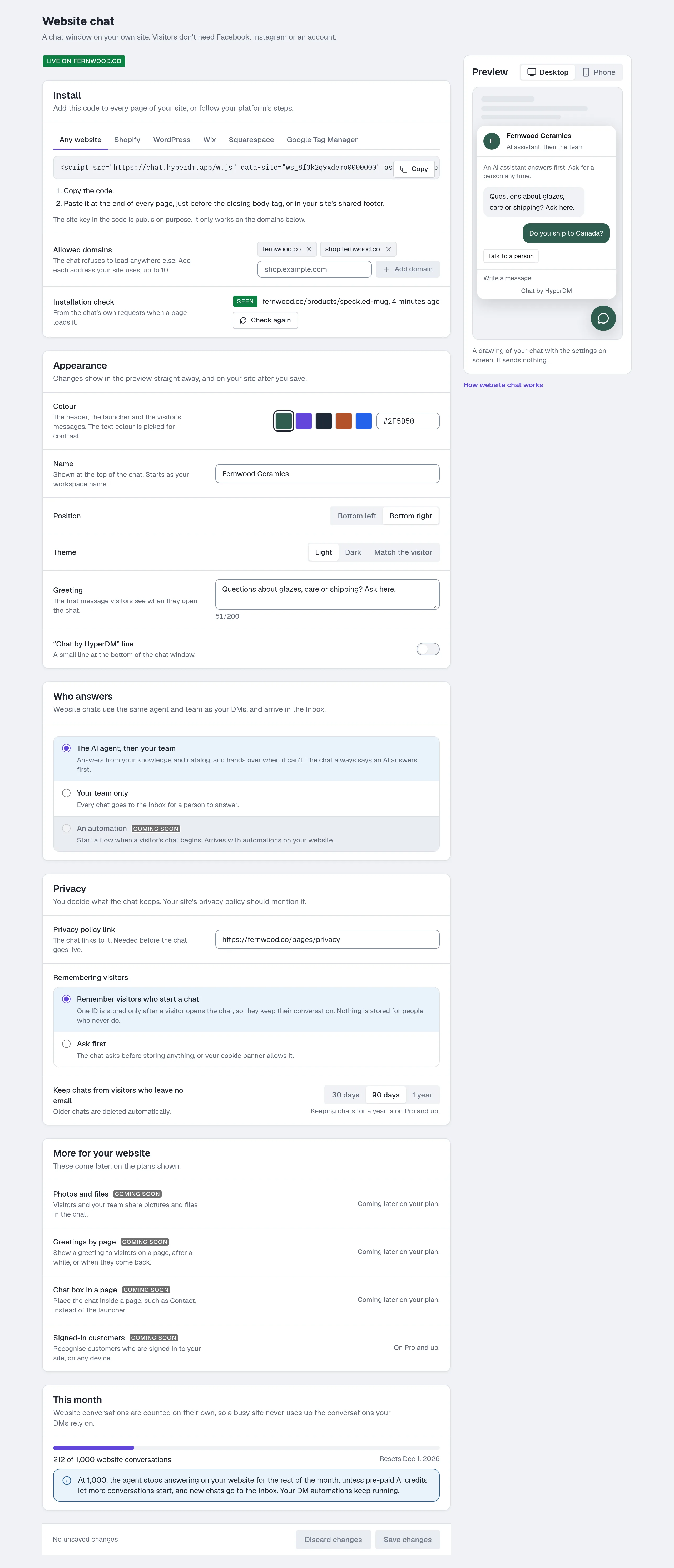
Install
The Install section has the code to add to your site, with a Copy button, and short steps for Any website, Shopify, WordPress, Wix, Squarespace and Google Tag Manager.
The code carries your site key (it starts with ws_). The key is public on purpose: it only works on the domains in Allowed domains, so copying it onto another site does nothing.
Allowed domains is the list of website addresses the chat may load on, up to 10. Type an address such as shop.example.com and click Add domain. Each one is saved as a secure (https://) address with no page path. The chat refuses to load anywhere else.
Installation check shows the last page the chat loaded on and when, from the chat's own requests. Click Check again after you add the code and open your site.
Change how the chat looks
The Appearance section changes the chat window. The Preview beside it (below it on a phone) shows your changes straight away; your site shows them after you click Save changes. The preview is a drawing: it sends nothing and counts toward nothing.
- Colour — the header, the launcher button and the visitor's messages. Pick one of the swatches or type a colour code such as
#2F5D50. The text colour on top is chosen for contrast. - Name — shown at the top of the chat. It starts as your workspace's name.
- Position — Bottom left or Bottom right.
- Theme — Light, Dark, or Match the visitor, which follows each visitor's own light or dark setting.
- Greeting — the first message a visitor sees when they open the chat, up to 200 characters.
- “Chat by HyperDM” line — a small line at the bottom of the chat. On Free it always shows. From Starter, switch on Hide the line to remove it.
Choose who answers
- The AI agent, then your team — the agent answers from your knowledge and catalog, as it does in your DMs, and hands the chat to your team when it can't help. The chat always tells visitors that an AI answers first and that they can ask for a person.
- Your team only — every chat goes to the Inbox for a person to answer. No AI answers, so the chat says The team replies here and doesn't mention an AI or show Talk to a person. If you switch to the AI agent while a visitor has the chat open, its first AI reply brings the AI line back. Earlier AI replies, from before you chose Your team only, stay in the conversation without it.
An automation (starting a flow when a visitor's chat begins) is shown as coming later: automations on your website aren't available yet.
When lots of new chats start at once
If 300 new website chats start within an hour, your website chat switches itself to Your team only, so a script on your site, or a sudden rush, can't use up your website conversations or the AI's spend. Every message still reaches the Inbox, and you get an email and a browser alert saying how many chats started. Who answers then shows a note saying when it switched. When it's calm, choose The AI agent, then your team again and save: new chats are counted again from that moment.
Privacy settings
- Privacy policy link — the chat links to your site's privacy policy. It must be a full
https://address, and it's needed before the chat goes live. Your policy should mention the chat. - Remembering visitors:
- Remember visitors who start a chat (the default) — one ID is stored in the visitor's browser only after they open the chat, so they keep their conversation when they come back. Nothing is stored for people who never open it.
- Ask first — the chat asks the visitor before storing anything, or your site's cookie banner allows it.
- Keep chats from visitors who leave no email — 30 days or 90 days (the default) on every plan, or 1 year from Pro. Older chats are deleted automatically.
Privacy settings are never limited by plan, except the one-year option.
What's on which plan
Every plan has the chat window, its install code and domains, its appearance and greeting, the agent and handover, website chats in the Inbox, and every privacy setting.
| Free | Starter | Growth | Pro | Agency | |
|---|---|---|---|---|---|
| Hide the “Chat by HyperDM” line | — | ✓ | ✓ | ✓ | ✓ |
| Keep chats for 1 year | — | — | — | ✓ | ✓ |
Each plan includes a number of website conversations a month. The This month section shows yours.
The More for your website section lists features that come later — Photos and files (Starter and up), Greetings by page and Chat box in a page (Growth and up), and Signed-in customers (Pro and up). They aren't available yet on any plan; the section says which plan each will be on.
How website conversations are counted
The This month section shows how many website conversations have started this month, out of your plan's allowance, and the date the count resets (the 1st of each month).
Website conversations are counted on their own, separately from your DM conversations, so a busy website never uses up the conversations your Instagram or WhatsApp automations rely on. When the website count reaches the allowance, the agent stops answering on your website for the rest of the month and new website chats go to the Inbox for your team, unless you have pre-paid AI credits: on a paid plan you pay for yourself, a credit lets one more website conversation start, from the same balance your DM conversations use. Your DM automations keep running.
On an Agency plan, the allowance is shared across the agency's client workspaces, so the page shows the whole agency's website conversations this month against the shared allowance.
Website chats in the Inbox
Website chats arrive in the Inbox like any other conversation. See The Inbox for presence, where your reply goes and the visitor's details.
Common questions
The chat doesn't show on my site. Check that the address in your browser is in Allowed domains exactly (www.example.com and example.com are different addresses: add both if your site uses both), that the code is on the page, and that Installation check has seen it. If your site has a strict content security policy, it must allow chat.hyperdm.app for scripts (script-src), frames (frame-src) and connections (connect-src: the chat asks for its settings before it draws).
Can I message a visitor who isn't on my site? You can reply at any time, but the reply only ever reaches them in the chat window on your site. If they come back and their browser remembered them, they see it when they open the chat. Nothing is sent to them anywhere else, such as by email.
What happens if my plan changes? If you move to a plan without a setting you used, the page sets it back and says so: the “Chat by HyperDM” line shows again, and chats are kept for 90 days at most. Click Save changes to apply it.
Does the chat work without Facebook? Yes. Visitors need no Facebook, Instagram or other account.
Can I offer Messenger in the chat? Not today.
More in Inbox & contacts
- Import contactsBring contacts in from a CSV: match the columns, check a dry run that lists every problem, import, then download the rows that didn't make it.Read
- Bulk actions on contactsSelect rows or everyone matching a filter, pick an action under More actions, confirm the count, then watch it run and read the outcome.Read
- Work the Inbox as a teamShare the Inbox with a team: assign conversations to people or groups, complete and reopen them, write internal notes, label them and save views.Read
Try HyperDM for free
50 free conversations a month, no card. Connect Instagram and follow the guide you just read.